(New) MTT Assay Workflow
Turn wellplate readings into dose-response curves and endpoint (e.g. IC50) values, then attach the results back to your samples.
The new MTT Assay workflow takes Viability (new Generic Element) wellplate data through a full dose-response analysis and brings the results back into the host app (e.g. ELN). From a Viability’s Wellplates tab you submit selected wellplates for processing, track each request’s status, review the computed endpoint (e.g. IC50) and dose-response curves, and then send the analyses you trust back to the corresponding samples as measurements.
Table of Contents
- Key Features
- Running an analysis
- Reviewing results
- Sending results back to samples
- How It Works
- 🚀 How to Participate in the Preview
Key Features
Audience: Researchers
Interface: Chemotion ELN / Generic Element: Viability – Wellplates & Measurements tabs
- Wellplate-to-analysis pipeline: Select one or more wellplates on a Generic Element and submit them for dose-response processing in a single action.
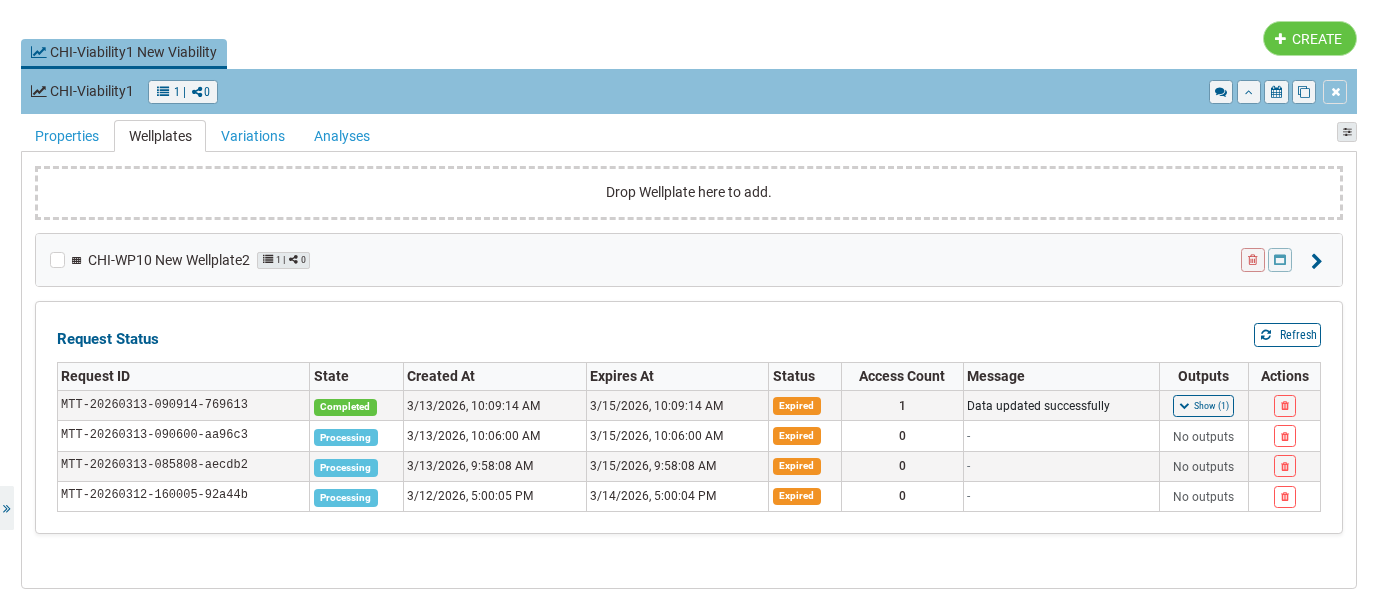
- Request tracking: A Request Status table shows every submission — its state (initial, processing, completed, error), created/expiry times, active/expired/revoked status, and any service message — with one-click Refresh and Delete.
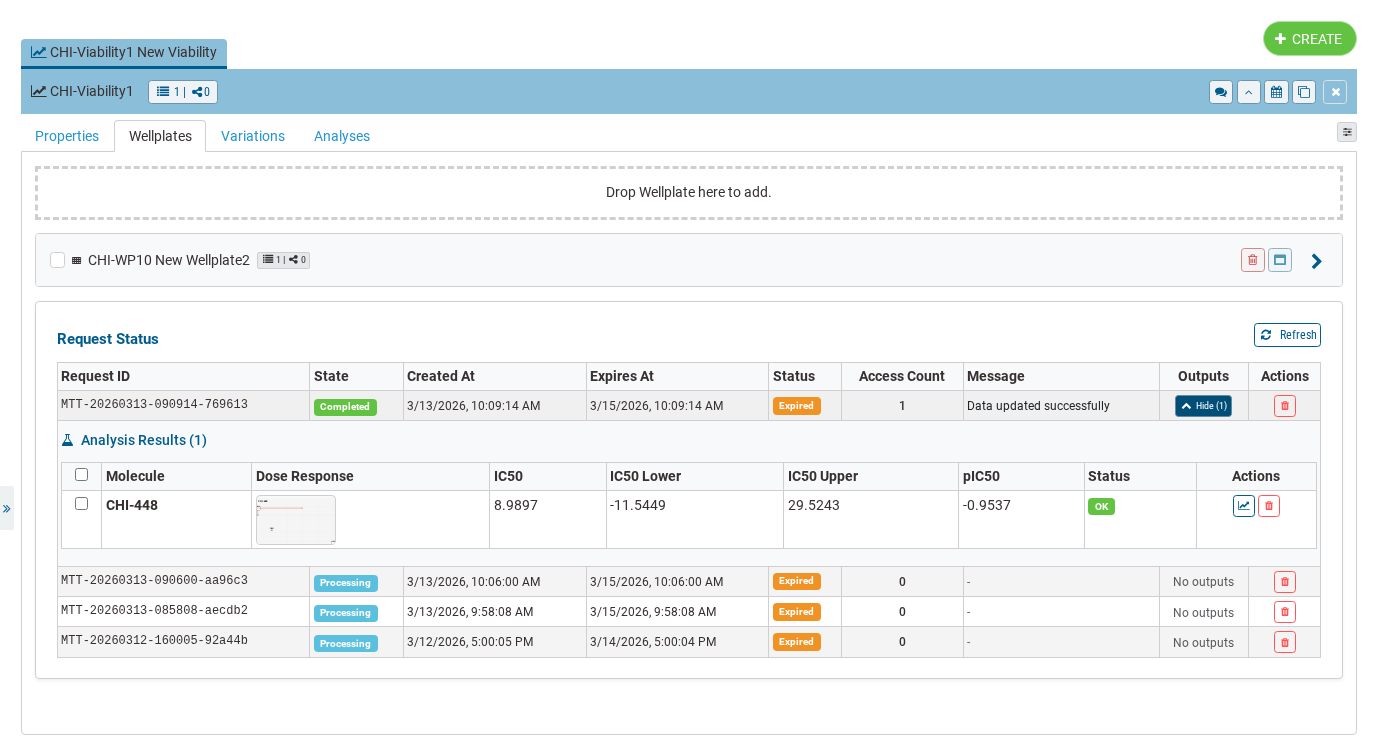
- Dose-response results: For each analysed molecule you get a compact box-plot preview of its dose-response curve plus the key metrics: IC50 (relative), its lower and upper bounds, and pIC50, with an OK / Problems status flag.
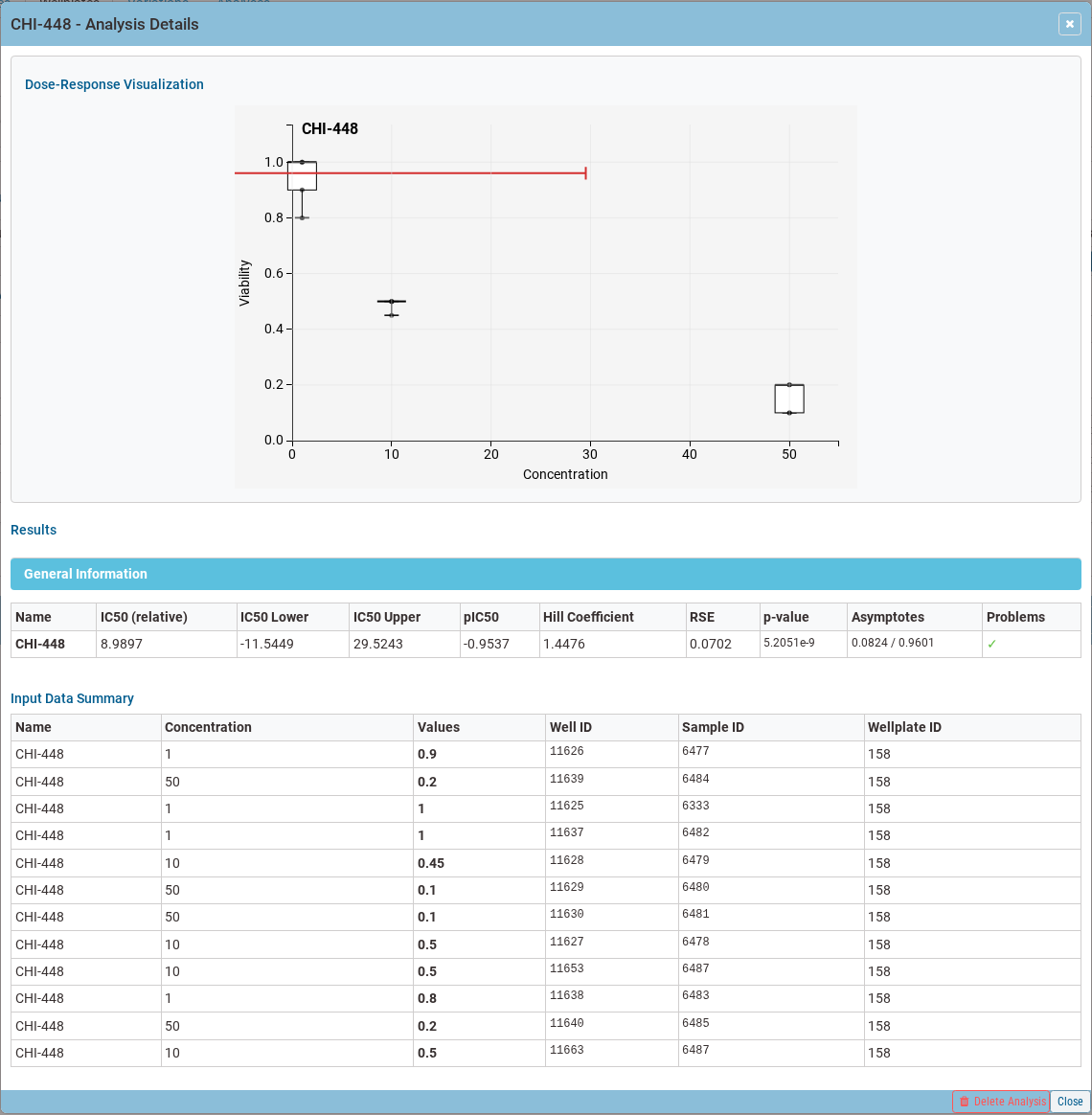
- Full analysis details: Open any result to see the enlarged dose-response visualization, the complete metrics table (Hill coefficient, RSE, p-value, asymptotes, problems), and the underlying input rows (concentration, values, well / sample / wellplate IDs).
- Send results to samples: Select the analyses you want and push them, in bulk, to their samples as measurements — so the dose-response outcome lives alongside the substance it describes.
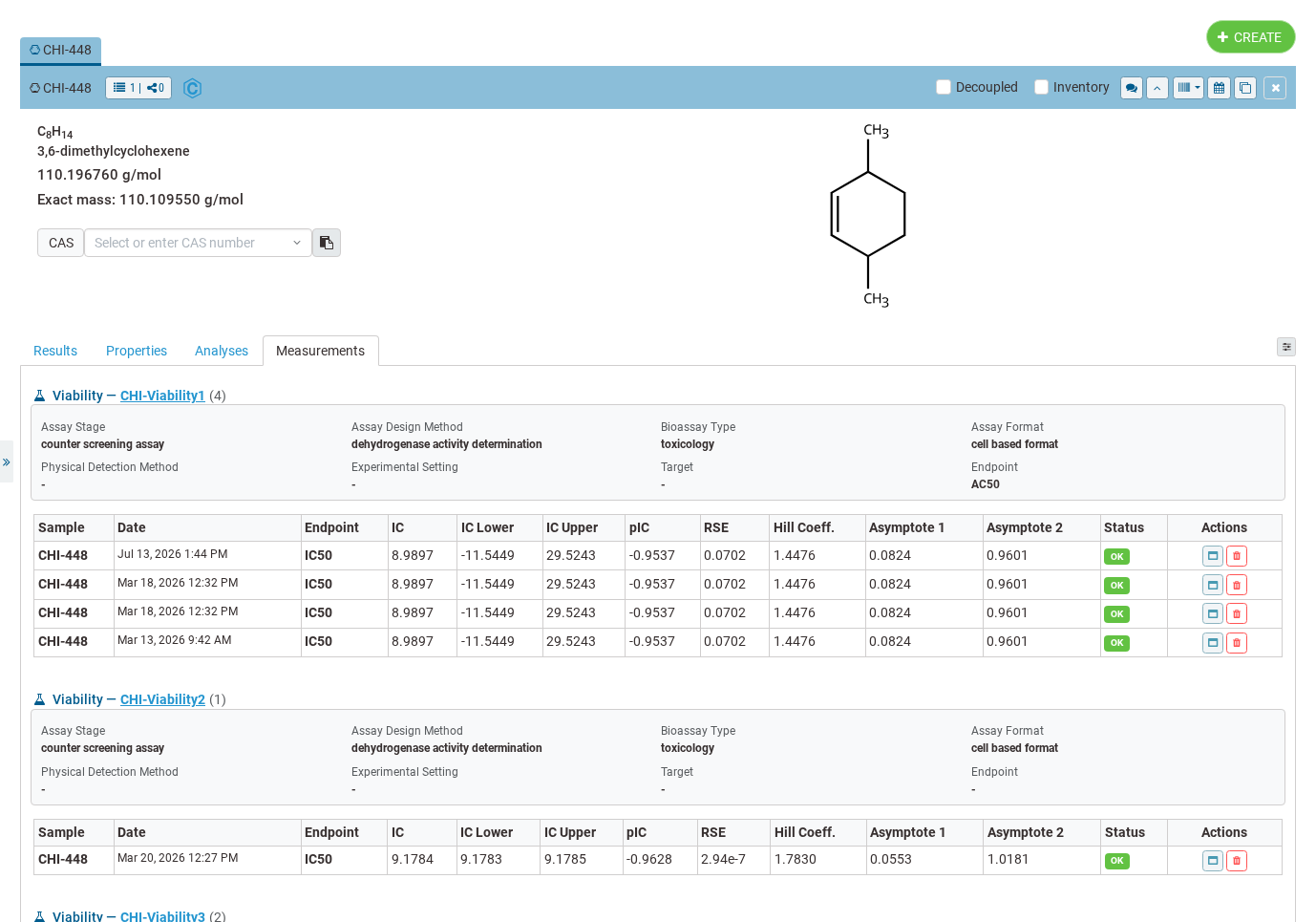
- Results in the Measurements tab: Each sample’s Measurements tab lists its MTT analyses grouped by Generic Element, with IC50 / pIC50 metrics, a link back to the originating Generic Element, and per-row delete.
Running an analysis
- Open the Generic Element that holds your assay and switch to the Wellplates tab.
- Attach wellplates: Drop a wellplate onto the drop area (or use those already linked) so its plate data is available for analysis.
- Select wellplates: Tick the wellplates you want to include in this run.
- Submit: Click to process the selection. A new entry appears in the Request Status table while the dose-response service computes the curves.
- Track progress: Use Refresh to update the state until the request reads completed. If something goes wrong, the row turns error and shows the service’s message.
(Click to view in a new window )
Reviewing results
Once a request is completed, expand its Outputs to see the results table. Each row is one analysed molecule:
| Column | Meaning |
|---|---|
| Molecule | Name of the analysed sample. |
| Dose Response | A thumbnail of the fitted dose-response curve — click to open the full view. |
| IC50 / Lower / Upper | The relative IC50 estimate and its confidence bounds. |
| pIC50 | The negative log of the IC50. |
| Status | OK, or a Problems badge when the fit flagged an issue. |
(Click to view in a new window )
Click any result (or the details action) to open the Analysis Details view, which shows:
- Dose-Response Visualization — the full-size curve for the selected molecule.
- Results — the complete metrics table: IC50 (relative), lower/upper bounds, pIC50, Hill coefficient, RSE, p-value, asymptotes, and problems.
- Input Data Summary — the raw rows behind the fit: name, concentration, measured values, and well / sample / wellplate identifiers.
(Click to view in a new window )
You can select individual results (or select all) with the checkboxes, and delete any analysis you no longer need.
Sending results back to samples
The point of an assay is to describe a substance — so the results belong with the sample.
- Select the analyses you trust in the results table.
- Send to samples: Push the selection in one action. Each analysis becomes a measurement on its matching sample, tagged with the assay’s label so you know where it came from.
- Confirmation: A notification reports how many measurements were created (and flags any that failed).
- View on the sample: Open the sample’s Measurements tab. MTT analyses are grouped by assay type and list the same IC50 / pIC50 metrics, a status flag, a link to open the originating Generic Element, and a delete action per row.
(Click to view in a new window )
How It Works
- Wellplate readings become dose-response fits. Submitted plate data is sent to a dose-response service that fits a curve per molecule and returns IC50, pIC50, confidence bounds, and goodness-of-fit metrics.
- Requests are first-class and traceable. Every submission is stored as a request tied to its Generic Element, with its own lifecycle (initial → processing → completed / error), expiry, and message — so nothing is a black box.
- Results are stored as measurements. Sending an analysis to a sample writes the metrics into the sample’s measurement records, keyed back to the originating element, so exports and the Measurements tab all see the real numbers and the provenance link.
Note: This feature is currently in preview and may undergo further refinements based on user feedback.
🚀 How to Participate in the Preview
Follow these steps to explore the new features and share your insight:
🖥️ Visit the Staging Instance
Access the preview environment at: labimotion-stage.ibcs.kit.edu🔍 Explore and Test
Try out the enhancements — see how they fit your workflow.❤️ Your Feedback Matters
Share your comments or report any issues in our GitHub Discussion Thread.
We appreciate your help in testing these new features!