(New) Toolbar Settings — Default Overview & Expand
Your personal Toolbar Settings, under My LabIMotion, now genuinely control whether the overview map and layer panels start open when a form opens.
Toolbar Settings — your own, under My LabIMotion — let you decide how a detail form looks the moment it opens. Two of its three switches now work as intended: Overview and Expand. The page also got a search box and a visual refresh, so finding the row you want is quicker.
Table of Contents
Key Features
Audience: All Users
Interface: Chemotion ELN / top-right user menu → My LabIMotion → Toolbar Settings
- Overview default: turns the Overview map open or closed the moment a form opens. The button itself always stays available, so you can still open or close it yourself in the moment.
- New Expand default: turns every layer open on load, or just the first one (the previous, implicit behavior — now an explicit, working switch).
- Arrange, alongside them: a third switch on the same row shows or hides the Arrange button in the toolbar — unchanged from before, just now sitting next to the other two.
- Same setting, two places: change these from the Toolbar Settings page, or from the gear icon right on the form.
- Find a row faster: a live search box filters both the Elements and Segments cards by label, with a match-count badge (e.g. “1/4”) and an empty-state message when nothing matches.
What It Looks Like
This is the real Toolbar Settings page — one row per element or segment, three switches each:
(Click to view in a new window )
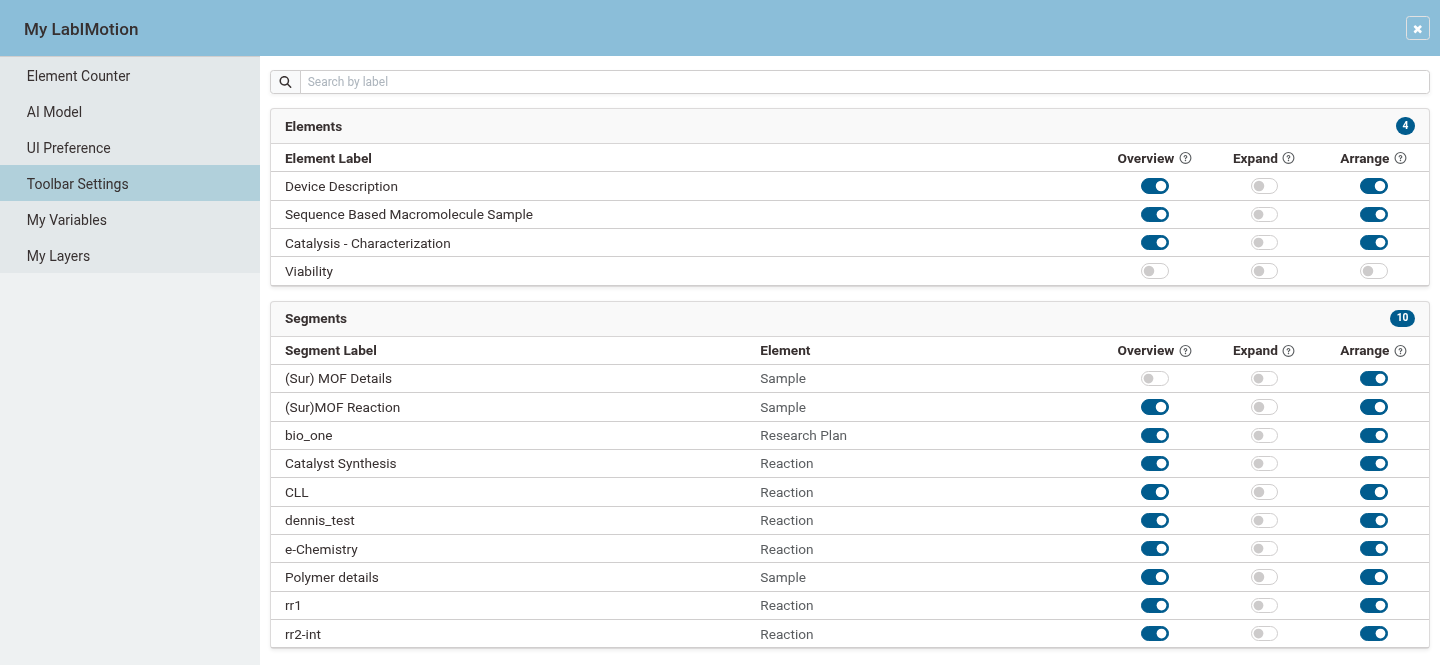
Hovering the ? next to each column name gives the exact rule: Overview — “Show the Overview map when the form opens.” Expand — “Expand all layers when the form opens (off: only the first layer).” Arrange — “Show the Arrange button in the toolbar.”
Example Scenario
- Click your name in the top-right corner → My LabIMotion → Toolbar Settings.
- Use the search box to jump straight to the element or segment you use most — e.g. typing “sample” narrows both cards down to their matches, with a live count.
- Turn Overview off if you don’t want the map open every time you open a form; turn Expand on if you’d rather every layer open right away.
- Next time you open a matching form, it reflects your defaults — and the Overview, Expand and Arrange controls on the form itself still work normally to change things for that session.
How It Works
- These are personal, per-element or per-segment defaults — set on your own account under My LabIMotion, they don’t change what your colleagues see.
- The Overview, Expand and Arrange controls on the form keep working as manual, in-session toggles no matter what your defaults are set to.
Note: This feature is currently in preview and may undergo further refinements based on user feedback.
🚀 How to Participate in the Preview
Follow these steps to explore the new features and share your insight:
🖥️ Visit the Staging Instance
Access the preview environment at: labimotion-stage.ibcs.kit.edu🔍 Explore and Test
Try out the enhancements — see how they fit your workflow.❤️ Your Feedback Matters
Share your comments or report any issues in our GitHub Discussion Thread.
We appreciate your help in testing these new features!